

📂 Put Files in a New Folder in One Step: Control + Command + N
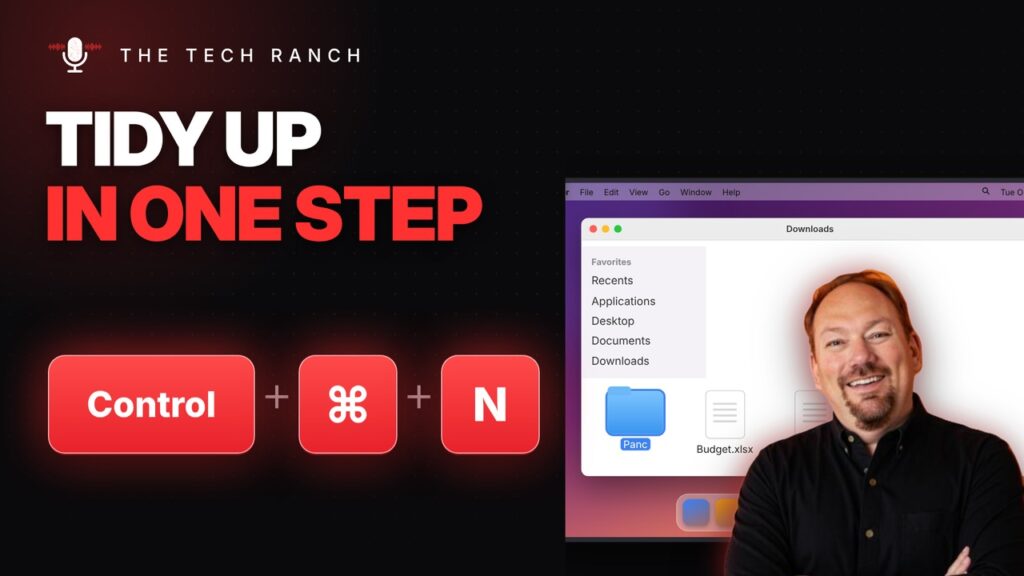
In Finder, select files and press Control + Command + N to put them in a new folder. Command + Shift + H opens Home.
⬆️ Go Up One Folder on a Mac with Command + Up Arrow
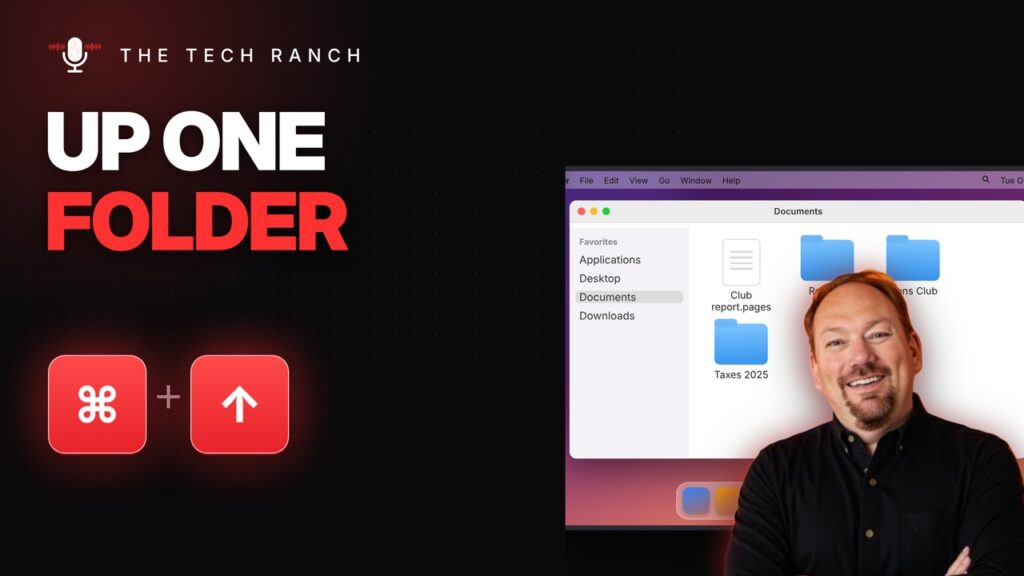
In Finder, press Command + Up Arrow to go up one folder. Command + Down opens the selected item.
📂 Open Your Mac’s Applications Folder with Command + Shift + A

In Finder, press Command + Shift + A to open Applications. Command + Option + L opens Downloads.
📁 Make a New Folder on Your Mac with Command + Shift + N
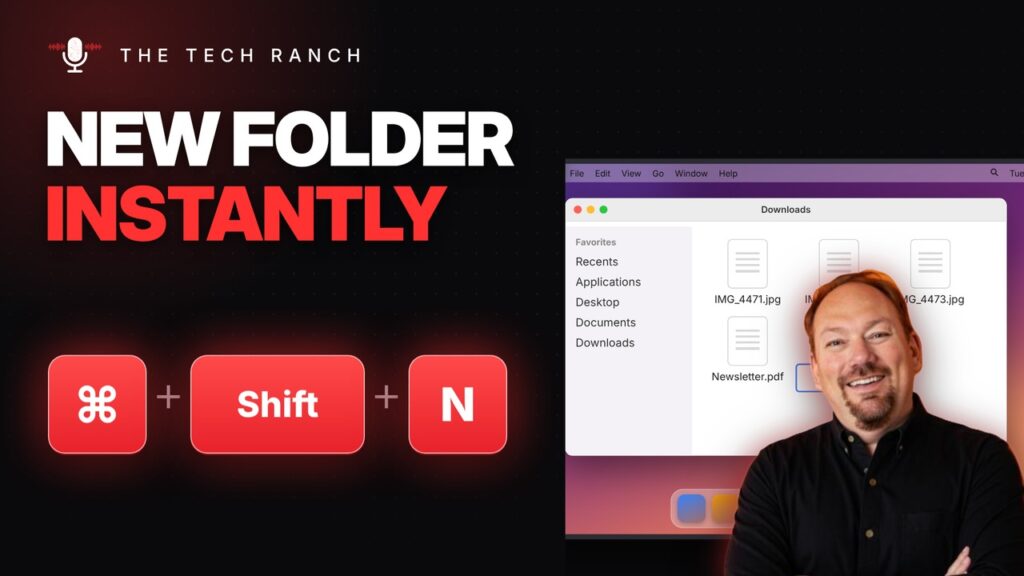
In Finder, press Command + Shift + N for a new folder. Select a file and press Return to rename it.
🔍 Find Any File Fast in File Explorer: Ctrl + E
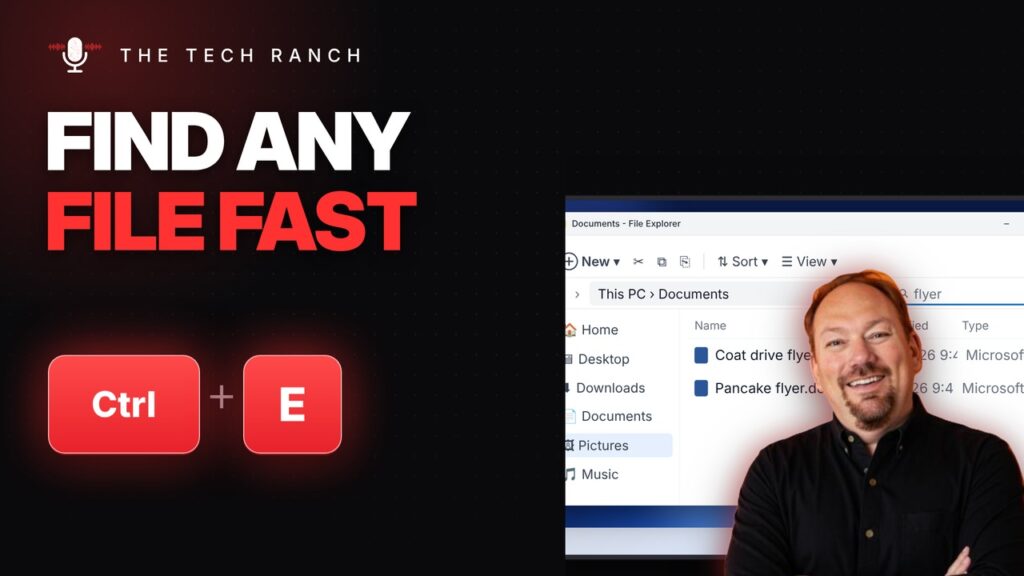
In File Explorer, press Ctrl + E to search the folder you’re in. Ctrl + T opens a new tab in Windows 11.
📑 Save All Your Open Tabs at Once: Ctrl + Shift + D

In Chrome, Ctrl + Shift + D saves every open tab into one bookmark folder. Ctrl + Shift + B shows the bookmarks bar.
📁 File Emails Fast in Outlook with Ctrl + Shift + V
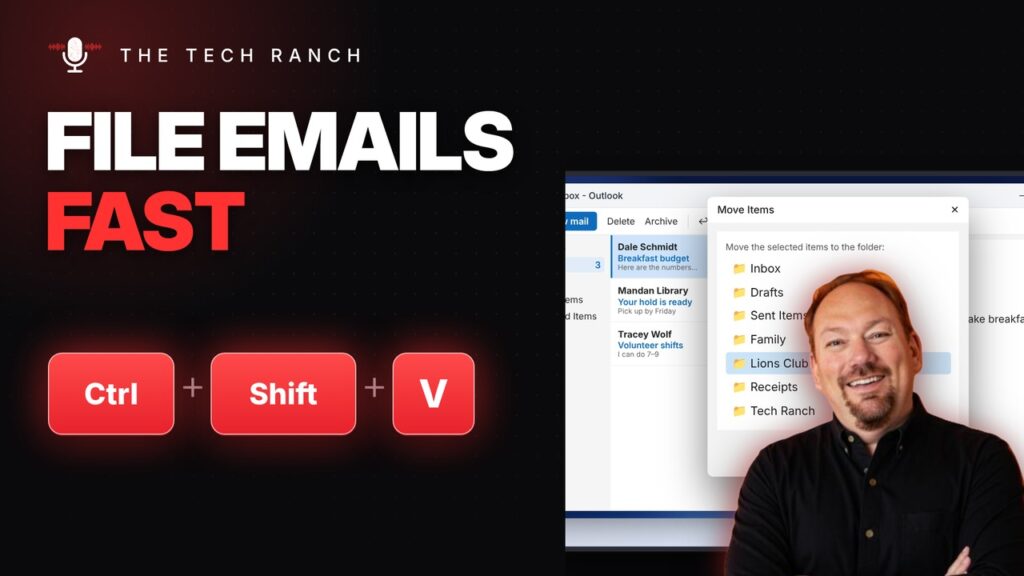
In Outlook, press Ctrl + Shift + V to move an email to a folder. Ctrl + Shift + B opens the address book.
✂️ Cut and Paste Files on a Mac with Command + Option + V

On a Mac, copy a file with Command + C, then press Command + Option + V to move it. Command + F searches Finder.
👻 Show Hidden Files on a Mac with Command + Shift + Period
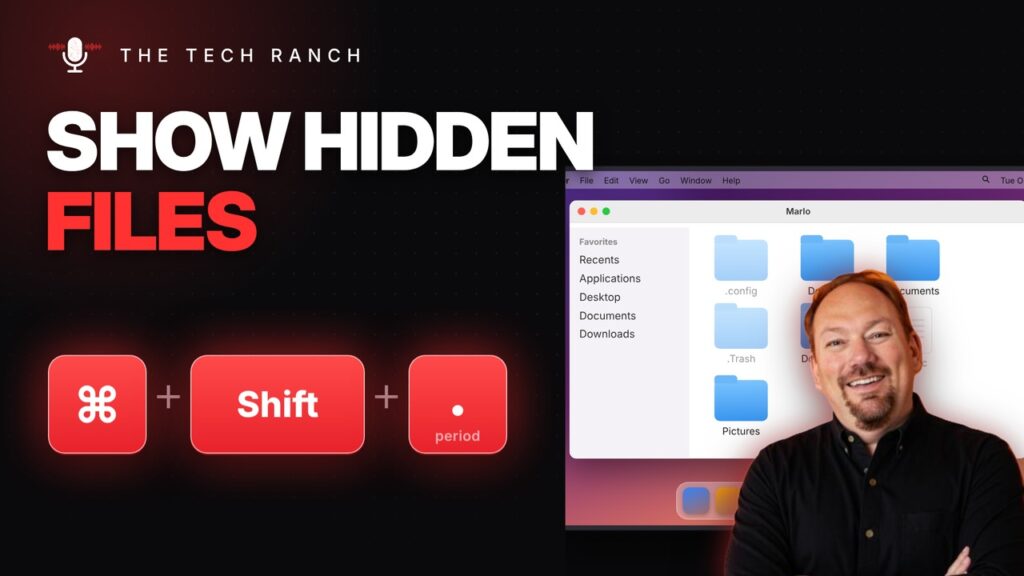
In Finder, press Command + Shift + Period to show hidden files. Command + Shift + G goes to any folder.
📍 Copy a File’s Full Location with Ctrl + Shift + C

In Windows 11 File Explorer, Ctrl + Shift + C copies a file’s full path. Alt + D jumps to the address bar.