


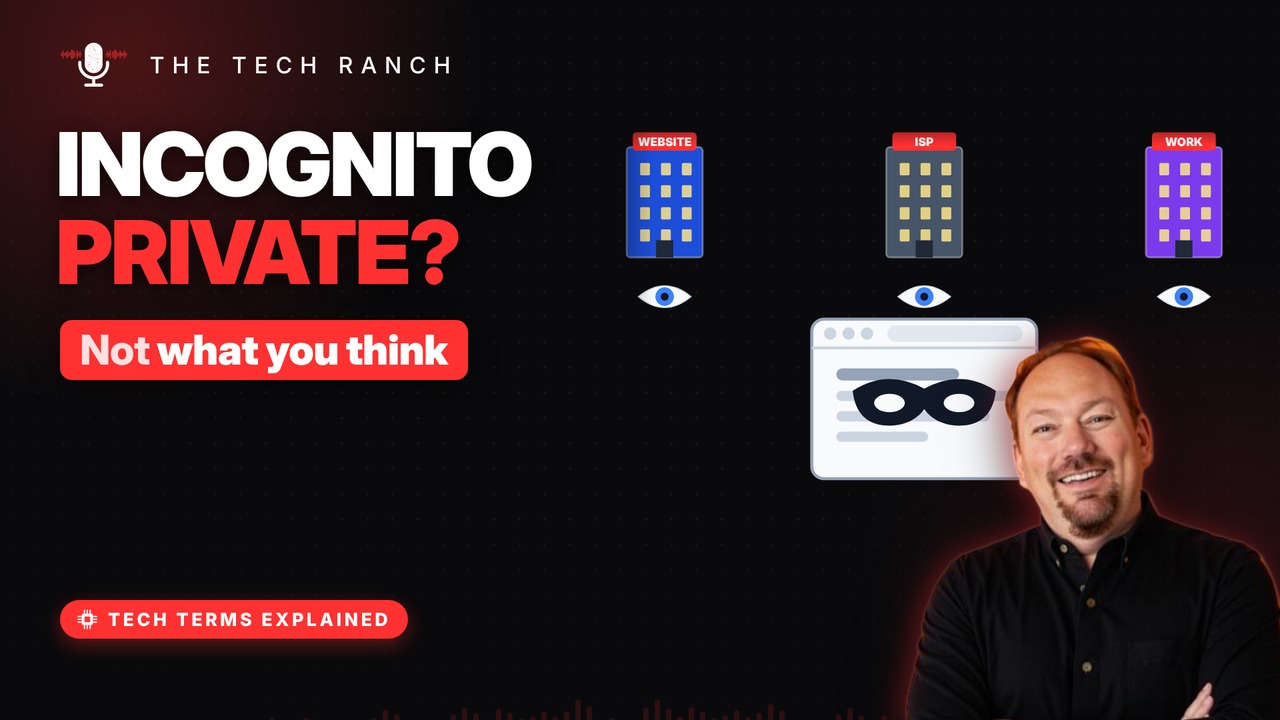
Incognito and private browsing modes stop your browser from saving history and cookies on your device. But websites, your internet provider and your employer’s or school’s network can still see what you do. Here’s what private browsing really hides, what it doesn’t, and when it’s handy.
What it does
Opens a separate, temporary browser window. Doesn’t save the sites you visit to your history. Deletes that session’s cookies and site data. Handy on a shared computer.
It does NOT hide you
Websites you visit still see your visit. Your internet provider can still see the sites. So can your employer’s or school’s network. Log in to an account, and that site knows it’s you.
What sticks around
Files you download stay on your device. Bookmarks you save stay too. Delete private downloads yourself. It’s not an eraser for your past browsing.
Where it came from
Safari added Private Browsing in 2005. Chrome launched Incognito in 2008. Most major browsers have a version now. Different names, same basic idea.
When it’s useful
Using a friend’s or a hotel computer. Signing in to a second account at the same time. Shopping for a gift on a shared device. Privacy from networks needs more than this.
Bonus: Close it to clear it
Cookies clear when the incognito session ends. Leave one incognito window open and it continues. Close all incognito windows when you’re done.
More Tech Terms, Explained
This is part of my Tech Terms Explained series: everyday tech words, explained in plain English, with simple animations. Watch the whole series on YouTube and subscribe to The Tech Ranch so you don’t miss the next one. Short on time? Here’s the quick Short version.
Found this helpful? Give the video a thumbs up on YouTube. Got a tech word you’d like explained? Ask in the YouTube comments and it might be the next video.