

HTTPS encrypts the connection between you and a website, but the padlock doesn’t mean the site is honest. Learn what HTTPS actually protects, why scam sites can show a padlock too, why some browsers replaced the icon, and the one habit that really keeps you safe.
The S is for secure
HTTP is how browsers and websites talk. HTTPS adds encryption — the S means secure. It scrambles data between you and the site. Others on your network can’t read what you send.
Private, not proven
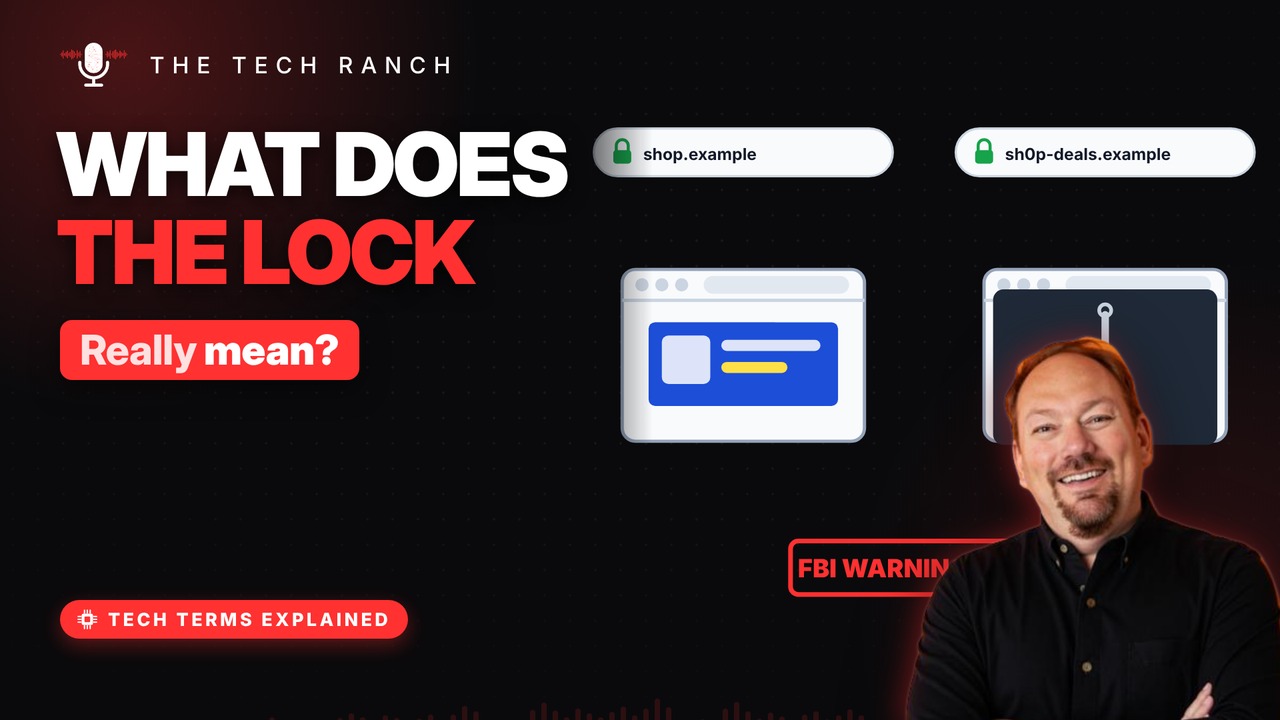
The padlock means the connection is encrypted. It doesn’t mean the site is honest. Scam sites can get the padlock too. The FBI warned about exactly this in 2019.
Goodbye, padlock?
So many people misread the padlock that. In 2023, Chrome swapped it for a ‘tune’ icon. Icons differ from browser to browser. Warnings still appear when a site isn’t secure.
A digital ID card
HTTPS sites show a certificate: a digital ID. Trusted issuers check that the site owns its name. It proves you reached that exact web address. But a scam can own a lookalike address.
Check the address, not the lock
Before typing a password, read the web address. Watch for lookalikes: extra words, odd spellings. Don’t trust links in surprise emails or texts. Type the address yourself or use a bookmark.
Bonus: HTTPS on public Wi-Fi
On public Wi-Fi, HTTPS keeps what you send private. Check every page uses HTTPS, not just the login. Log out of accounts when you’re done.
More Tech Terms, Explained
This is part of my Tech Terms Explained series: everyday tech words, explained in plain English, with simple animations. Watch the whole series on YouTube and subscribe to The Tech Ranch so you don’t miss the next one. Short on time? Here’s the quick Short version.
Found this helpful? Give the video a thumbs up on YouTube. Got a tech word you’d like explained? Ask in the YouTube comments and it might be the next video.