


By Marlo Anderson – The Tech Ranch
Long article, busy hands? Let Chrome read it to you.
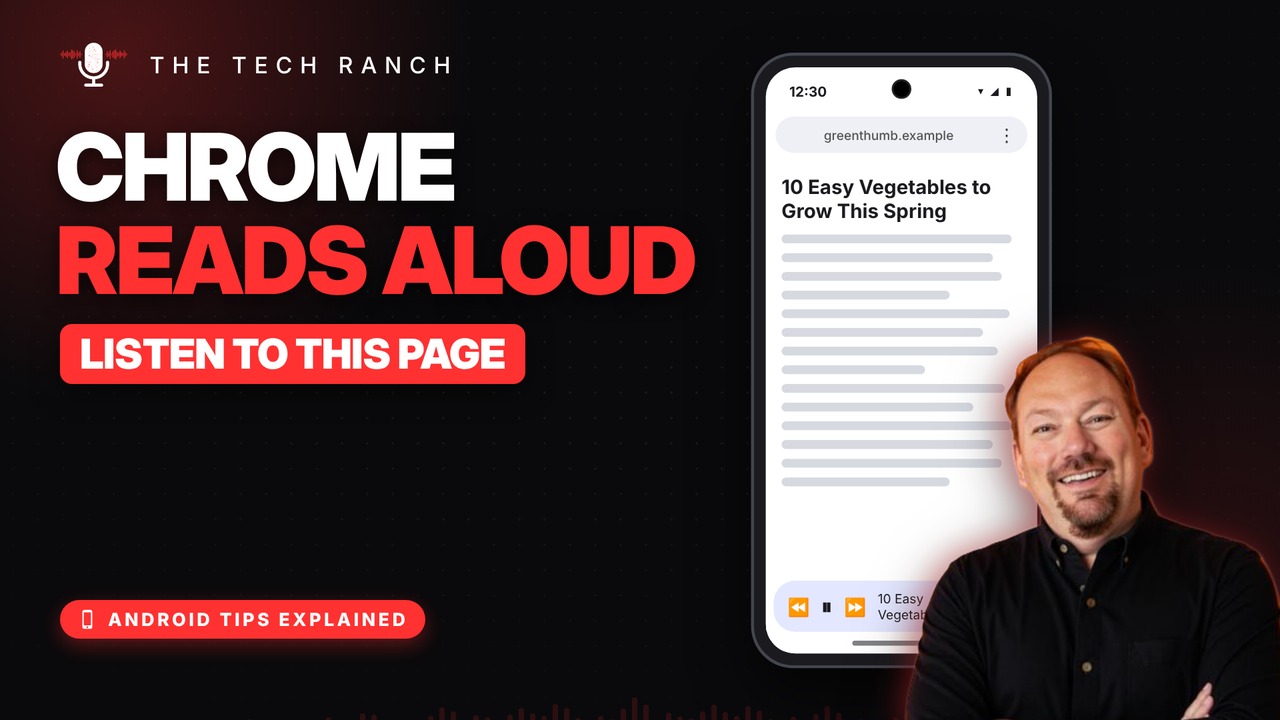
Listen to This Page
Open an article in Chrome, tap the three dots (⋮) menu, then Listen to this page. A player pops up and starts reading.
The Player
Pause, or skip back and ahead 10 seconds. Change the speed or pick a different voice. It keeps reading with the screen locked, even when you switch tabs.
Good to Know
It works best on article pages. On Samsung, use Chrome, which comes installed, rather than Samsung Internet.
Bonus Tip: Bigger Text
Tap ⋮ › Settings › Accessibility and drag the Default zoom slider to make every page bigger.
More Android Tips, Explained
This is part of my Android Tips Explained series: everyday Android tricks that work on Pixel, Samsung and more, explained in plain English with simple animations. Watch the whole series on YouTube and subscribe to The Tech Ranch so you don’t miss the next one.
Found this helpful? Give the video a thumbs up on YouTube. Got a phone question? Ask it in the YouTube comments and it might be the next video.