

📸 Screenshot Just Part of Your Mac Screen with Command + Shift + 4

Press Command + Shift + 4 and drag a box to screenshot just part of your Mac screen. Press Space to grab a whole window. It saves right to your desktop.
🪟 Snap Windows Side by Side with the Windows Key + Arrow Keys

Press the Windows key + an arrow to snap a window to half the screen, then let Snap Assist fill the other side. Works on Windows 10 and 11.
🧹 Paste Without the Mess: Ctrl + Shift + V in Google Docs and Word
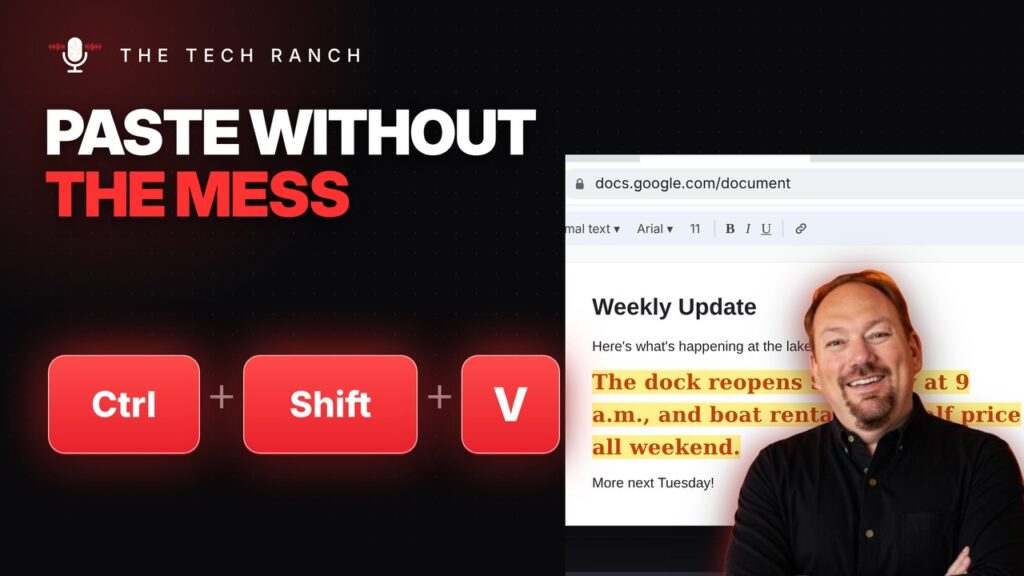
Ctrl + Shift + V pastes just the text, matched to your document. It works in Google Docs and Microsoft Word.
🗂️ Too Many Tabs? Ctrl + a Number Jumps Right to the One You Want

Ctrl + 1 to 8 jumps straight to that tab in Chrome, and Ctrl + 9 always goes to the last one. On a Mac, use Command.
🔍 Find Anything on Your Mac in Seconds with Command + Space

Press Command + Space, type a few letters and press Return. Spotlight finds files and opens apps on your Mac in a second.
📋 Copied Something and Lost It? Win + V Brings Back Your Clipboard History

Ctrl + C only remembers the last thing you copied. Press the Windows key + V to see everything you’ve copied and paste any of it.
⌨️ Closed a Tab by Accident? Ctrl + Shift + T Brings It Right Back

Closed a browser tab by accident? Ctrl + Shift + T (Cmd + Shift + T on a Mac) brings it right back, and it works in Chrome, Edge, Firefox and Brave.