

⇤ Jump to the Start or End of a Line on a Mac

On a Mac, Command + Left/Right jumps to the start or end of a line. Option + arrows hop word by word.
⌫ Delete Whole Words on a Mac with Option + Delete

On a Mac, press Option + Delete to erase a whole word at a time. Fn + Delete deletes forward.
⚙️ Open Any App’s Settings on a Mac with Command + Comma
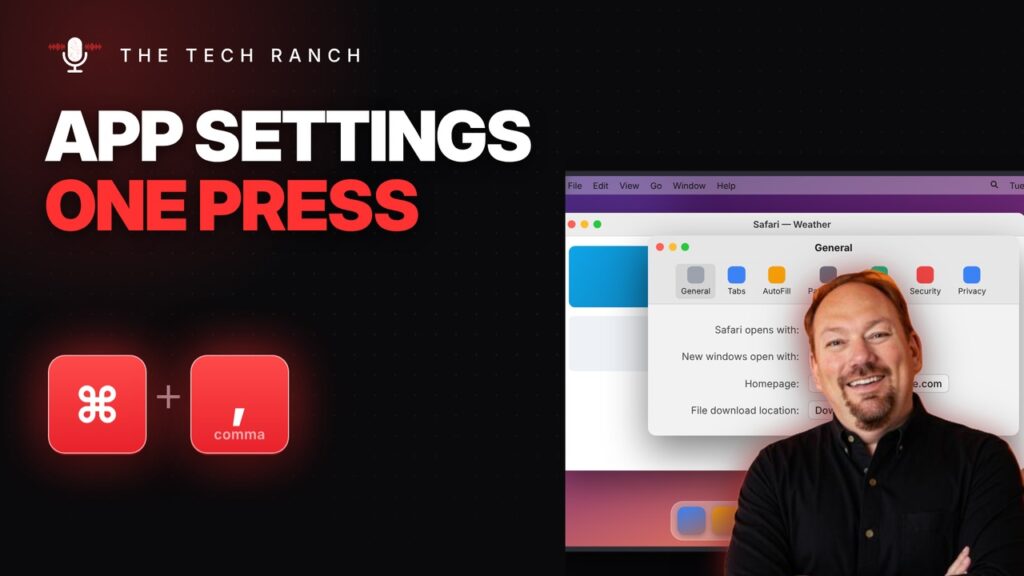
On a Mac, press Command + Comma to open Settings for the app you’re using. Command + Option + D hides the Dock.
ℹ️ How Big Is This File? Get Info on a Mac with Command + I

Select a file in Finder and press Command + I to see its size and details. Command + D makes a copy.
📁 Make a New Folder on Your Mac with Command + Shift + N
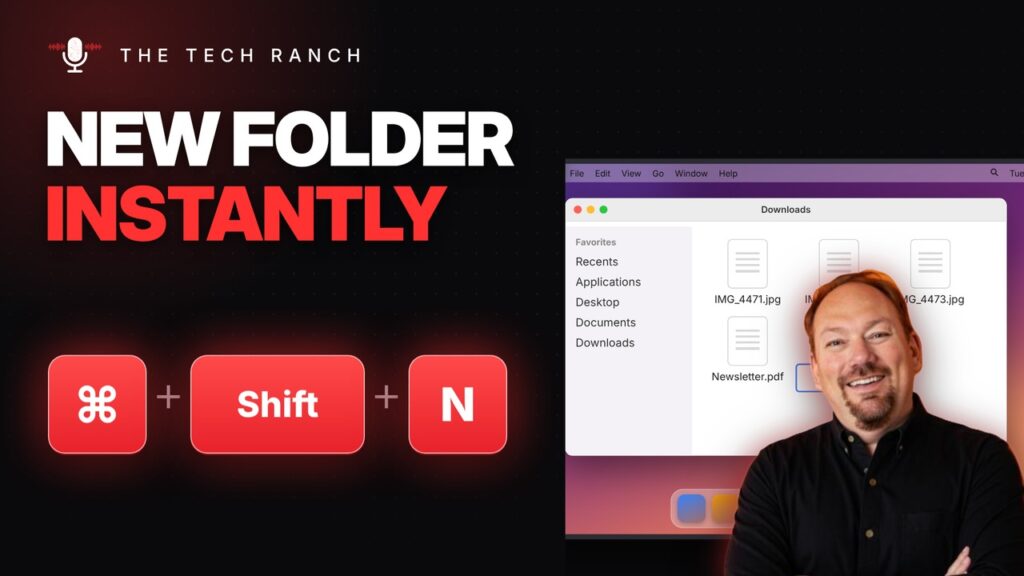
In Finder, press Command + Shift + N for a new folder. Select a file and press Return to rename it.
🪟 See Every Open Window on Your Mac with Control + Up Arrow

Press Control + Up Arrow on a Mac to see every open window at once. Control + Down shows just the current app’s windows.
🗑️ Delete Files on a Mac with Command + Delete
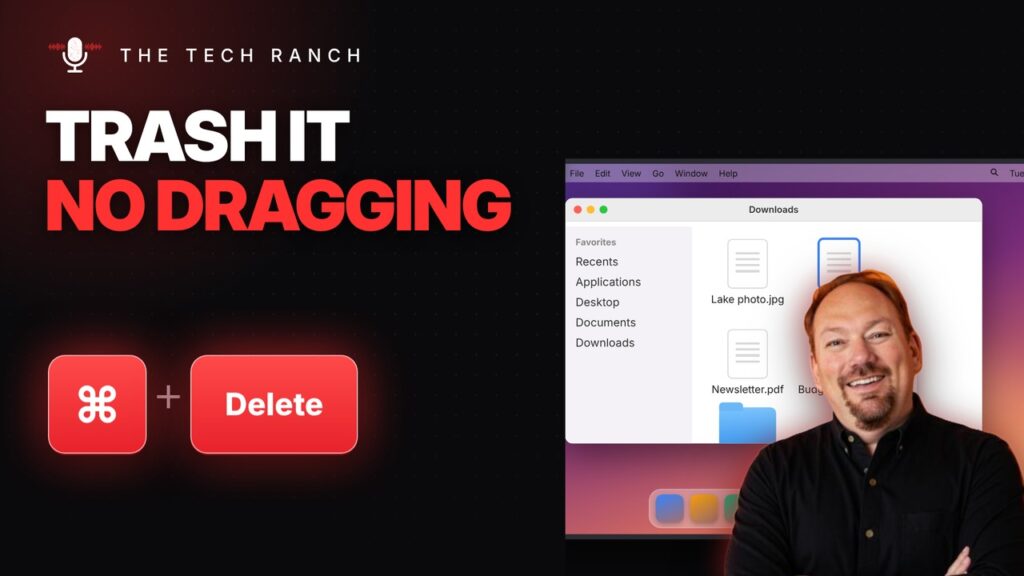
Select a file in Finder and press Command + Delete to move it to the Trash. Command + Z puts it back.
🔒 Lock Your Mac Instantly with Control + Command + Q

Press Control + Command + Q to lock your Mac instantly. Your apps stay open. On Windows: Win + L.
👀 Preview Any File on a Mac with the Space Bar
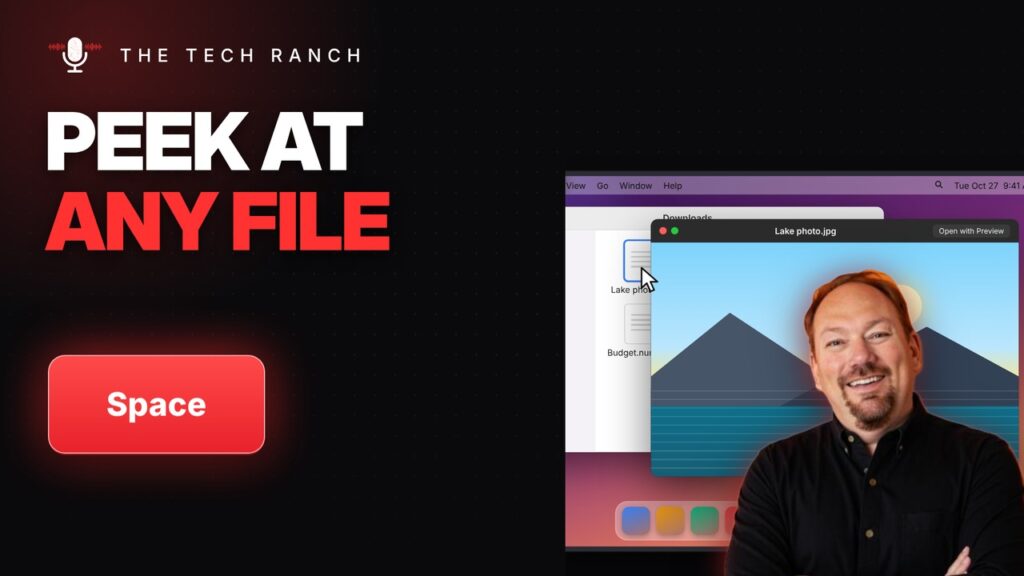
On a Mac, select a file in Finder and press the Space bar to preview it without opening an app. Space again closes it.
⬇️ Minimize a Window on Your Mac with Command + M

Press Command + M to minimize a window to the Dock on your Mac. Click it in the Dock to bring it back.